EMAILS FROM
MONKEYBRAINS
- > Overview
- > Gmail
- > Outlook
- > Google Workspace
- > Microsoft 365

Overview
Monkeybrains is committed to ensuring our outgoing emails are infrequent, and relevant to our customers. Despite this, some email providers sort our emails into junk/spam. The surest way to receive email from Monkeybrains is to add our domain to your email account's allowlist. Instructions for doing so are listed below.
To help ensure our emails do not get sorted into spam, we may send from and alternate domain, @mb-isp.net. These emails are from Monkeybrains and can be trusted as such.
Gmail
- Open the Gmail desktop web application. Ensure you are logged in with the email address you used to sign up for Monkeybrains. Note this process can only be done on the desktop version of the website.
-
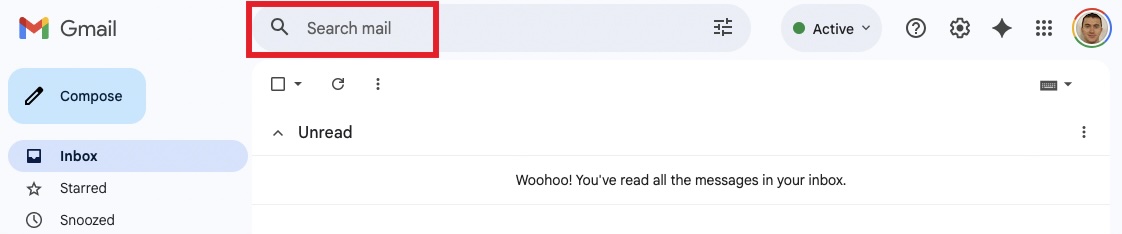
Click the "Search mail" box at the top
-
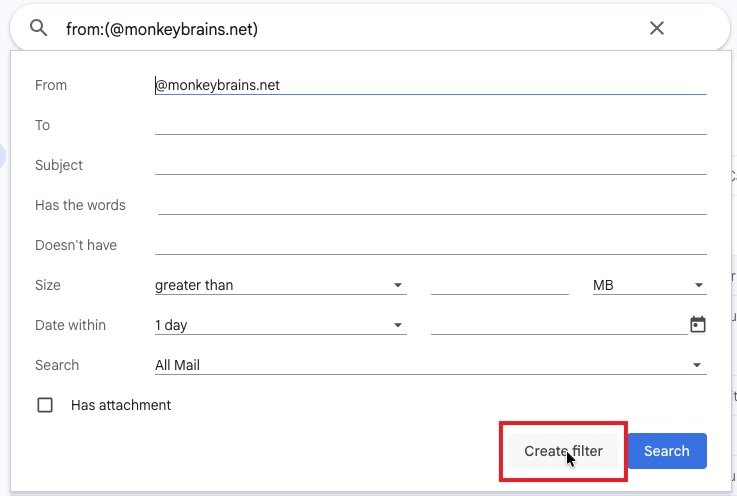
Enter text:
from:(@monkeybrains.net) , and click the icon on the right
-
Click the "Create filter" button
-
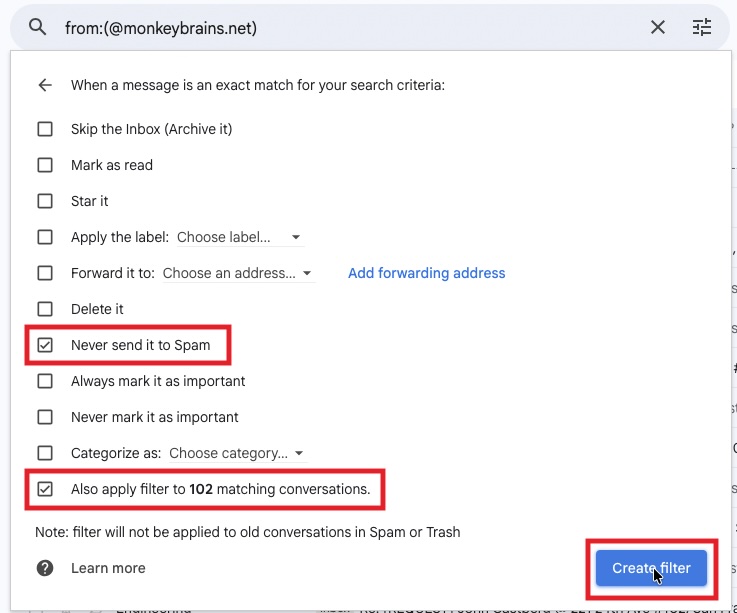
Check boxes "Never send it to Spam" and "Also apply filter to matching conversations"
-
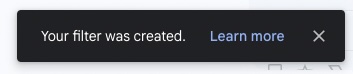
On the lower left hand side of the screen, you'll see a confirmation that the filter was created. All done!
Outlook
- Open the Outlook desktop web application. Ensure you are logged in with the email address you used to sign up for Monkeybrains. Note this process can only be done on the desktop version of the website.
-
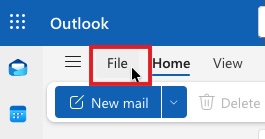
Click the "File" button on the upper right hand corner
-
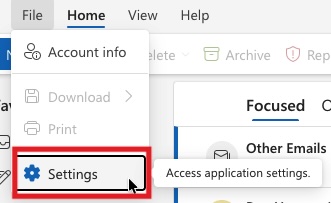
From the dropdown menu, click "Settings"
-
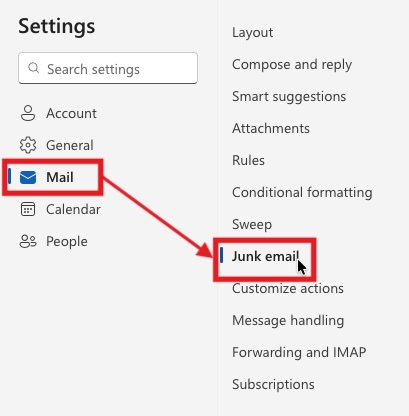
On the left hand side of the popup window, click "Mail", then "Junk email" in the submenu
-
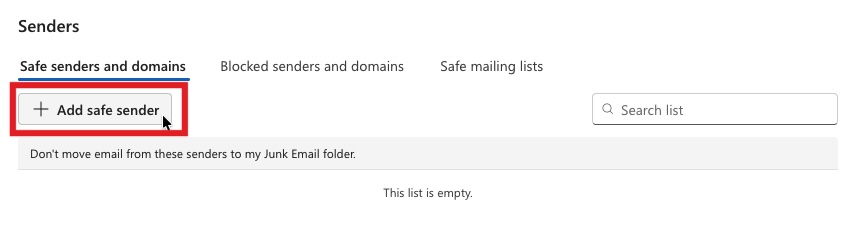
Click button "+ Add safe sender"
-
Type
monkeybrains.net into the field, and click "OK"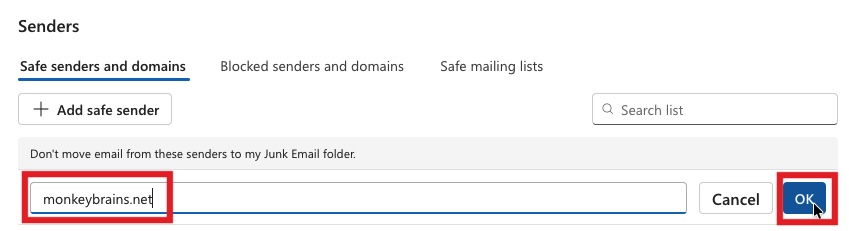
-
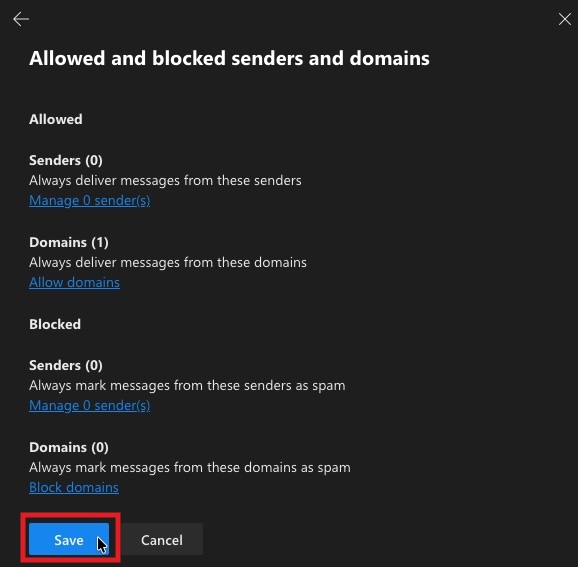
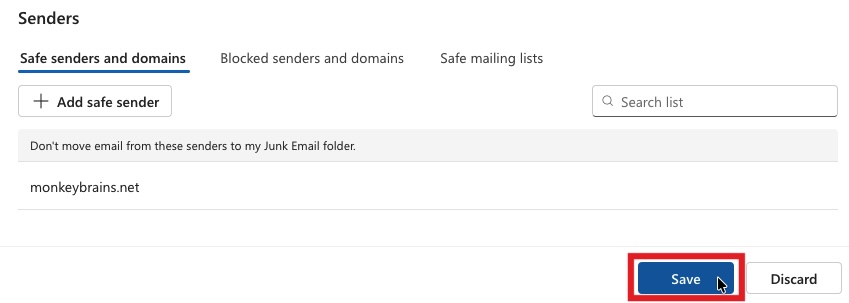
Click "Save". All done!
Google Workspace
- Open the Google Workspace admin portal
-
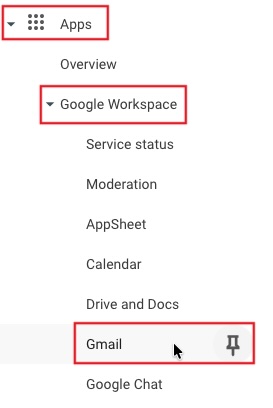
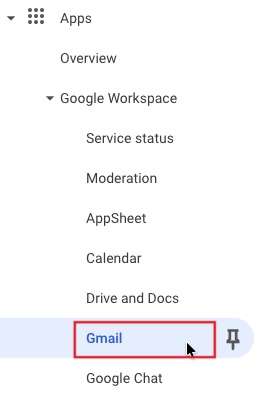
On the left navigation pane, go to Apps -> Google Workspace -> Gmail
-
At the bottom of the list, click "Routing"

-
Click "Manage address lists"

-
If you have an existing list for allowed senders, use that. Otherwise click "ADD ADDRESS LIST"

-
Name the list, and add "Address"
monkeybrains.net . Click "Save"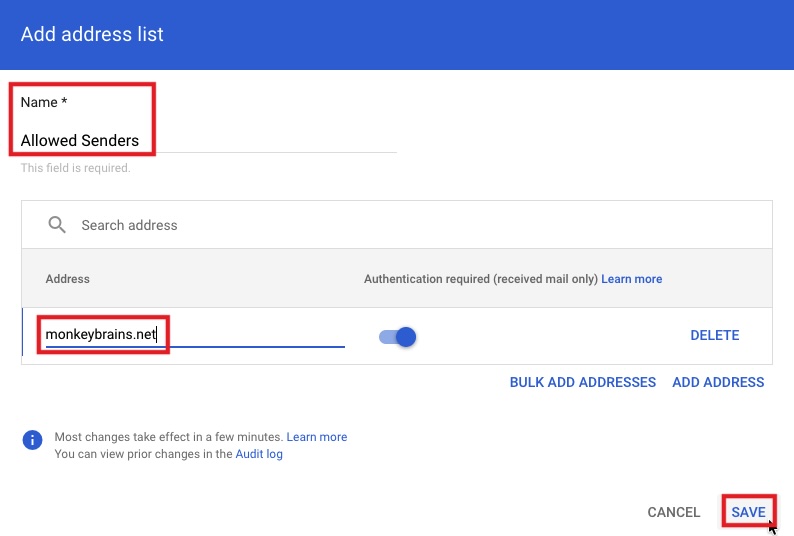
-
Navigate back to the administration page for Gmail
-
Click "Spam, Phishing and Malware"

-
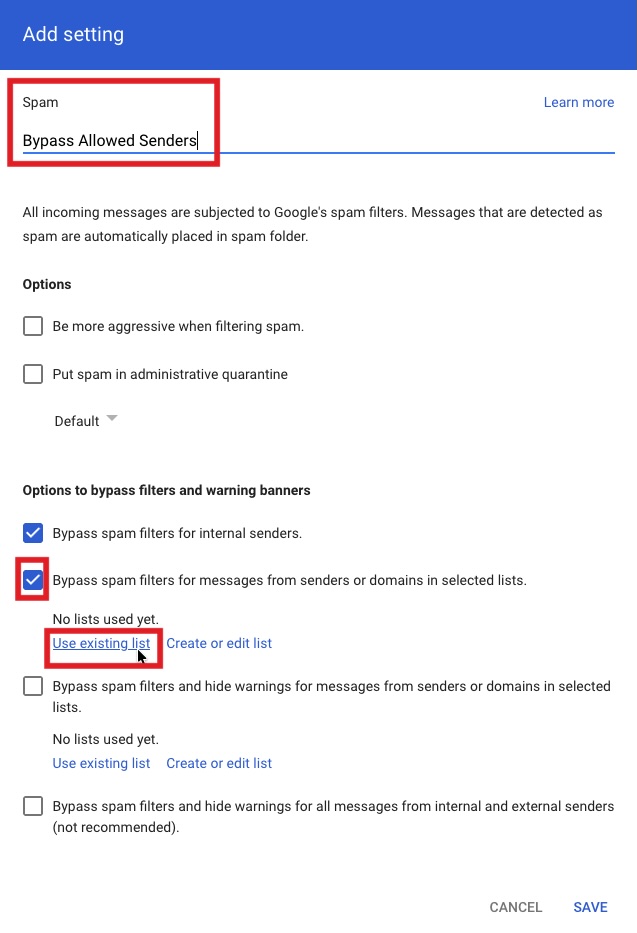
Under the "Spam" section, click "CONFIGURE" or "ADD ANOTHER RULE" if you already have rules

-
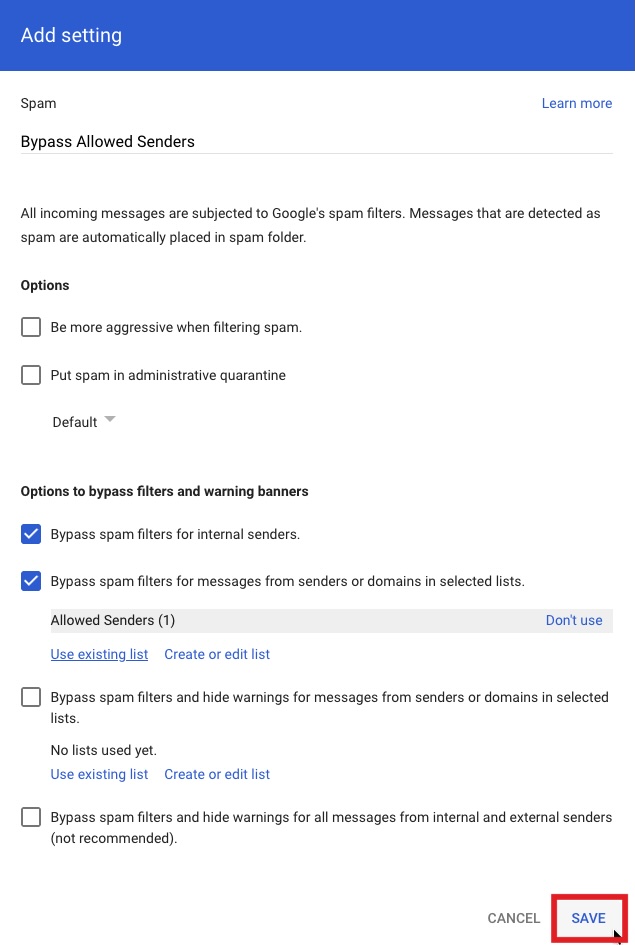
Name your new rule, ensure "Bypass spam filters for messages from senders or domains in selected lists" is checked, and click "Use existing list"
-
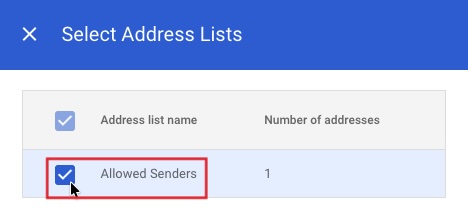
Select the list that you added "monkeybrains.net" to, and close the popup.
-
Click "SAVE". All done!
-
Note - you can also allowlist IP addresses under "Spam, Phishing and Malware" -> "Email allowlist". If you choose to configure this way, add CIDR block
208.69.40.19/24 to that list.
Microsoft 365
- Open the Microsoft 365 admin portal
-
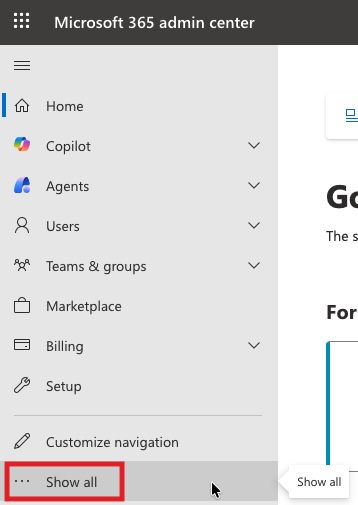
On the left navigation pane, click "Show all"
-
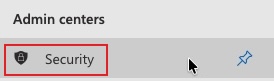
Click "Security"
-
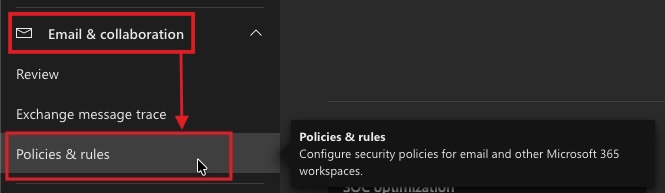
Open the "Email & collaboration" dropdown, then click "Policies and rules"
-
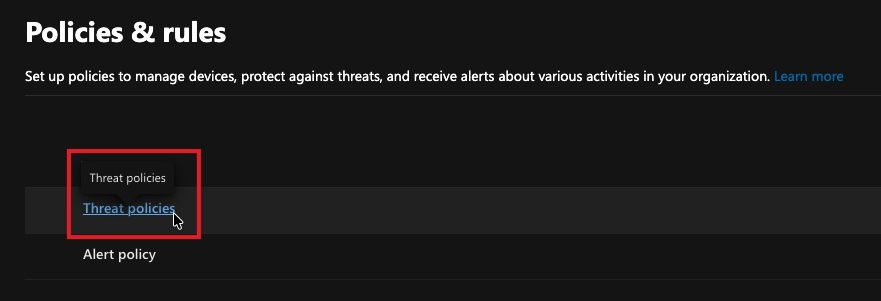
Click "Threat policies"
-
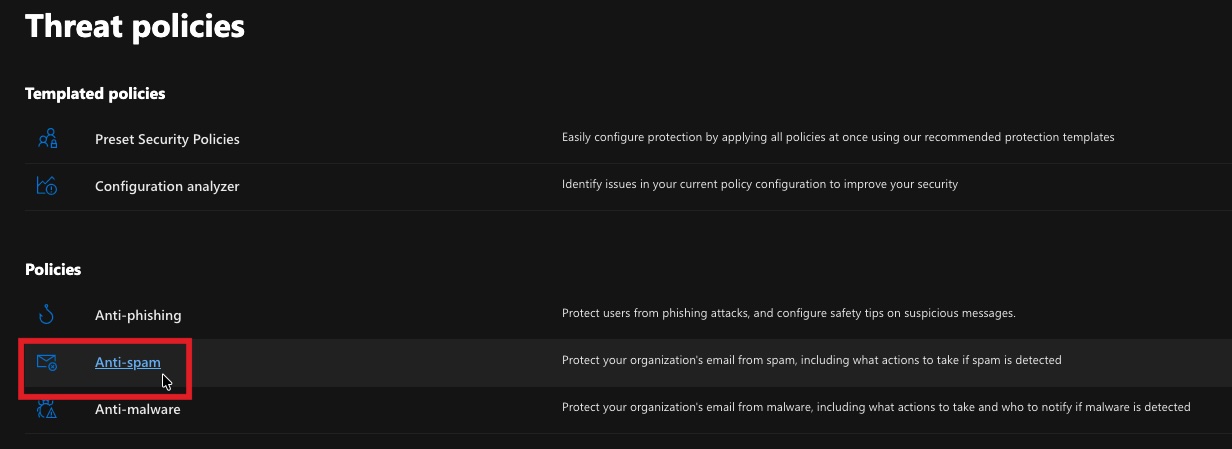
Click "Anti-spam"
-
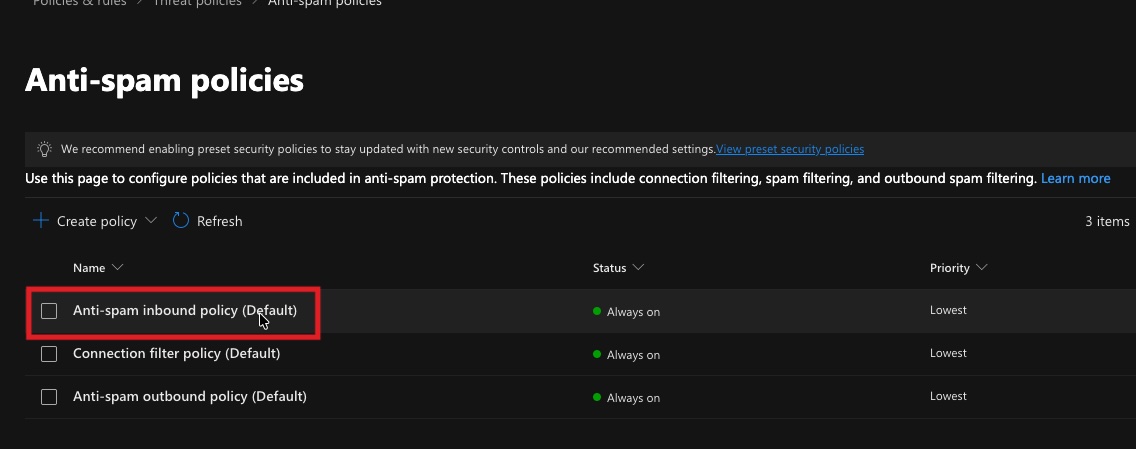
Click "Anti-spam inbound policy (Default)"
-
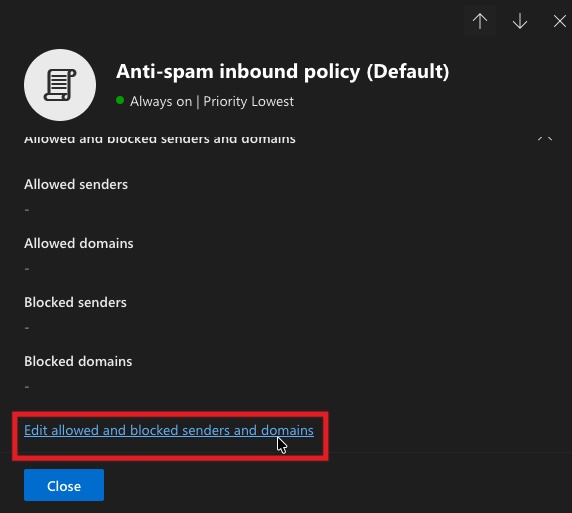
Click "Edit allowed and blocked senders and domains"
-
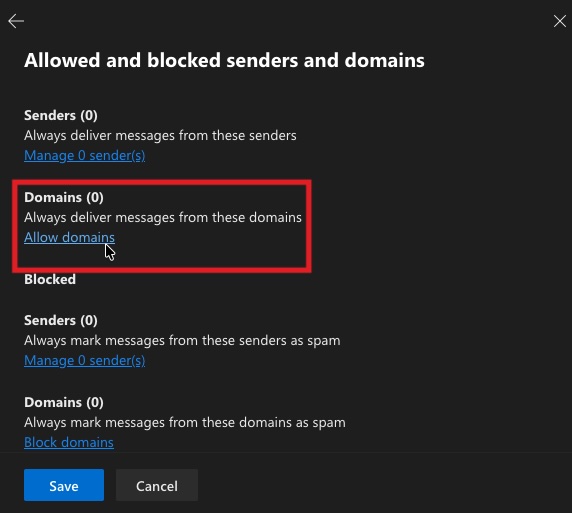
Click "Allow domains"
-
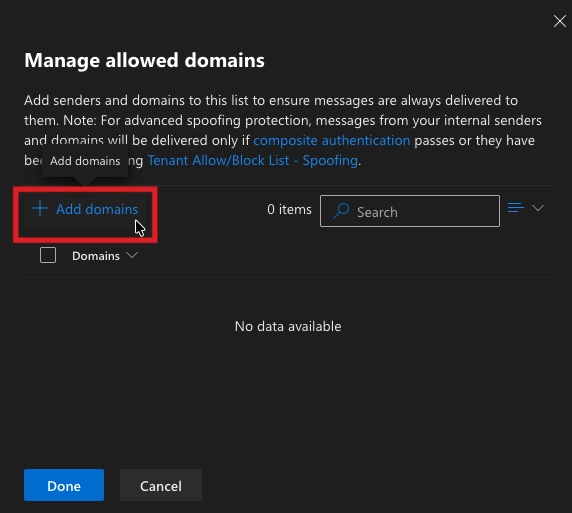
Click "+ Add domains"
-
Type
monkeybrains.net . Be sure to click the box that appears under the text input.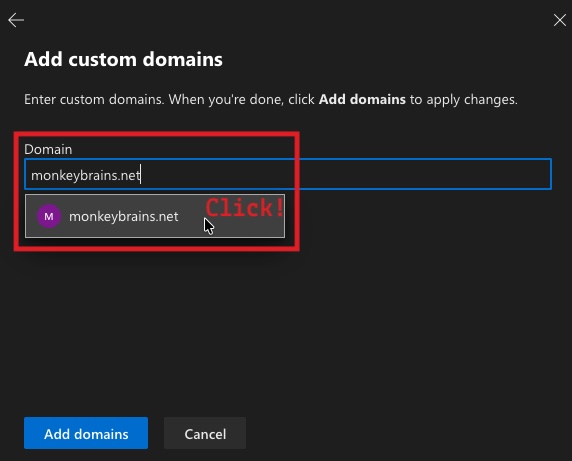
-
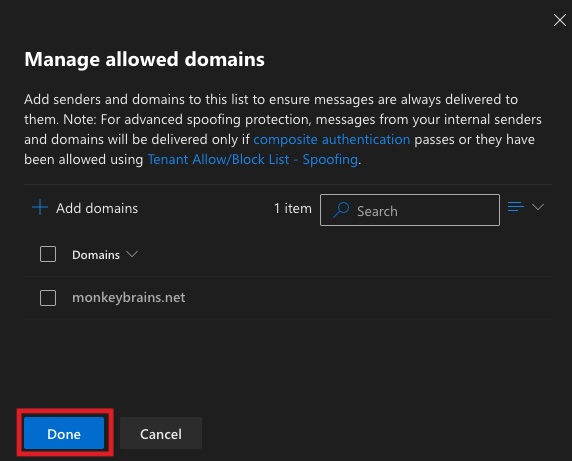
Click "Done"
-
Click "Save". All done!